2026-06-13tutorial
Colour Grading - How to Rescue a Red Photo
Walking through the full edit on a red-lit concert photo — culling, colour correction, and creating a focal point in Lightroom.
The process
Step-by-step
Steps 1–2 are figuring out which photos you want to and can save. Steps 3–4 are the edits — colour correction and creating a focal point.
Step 1 — The Photo
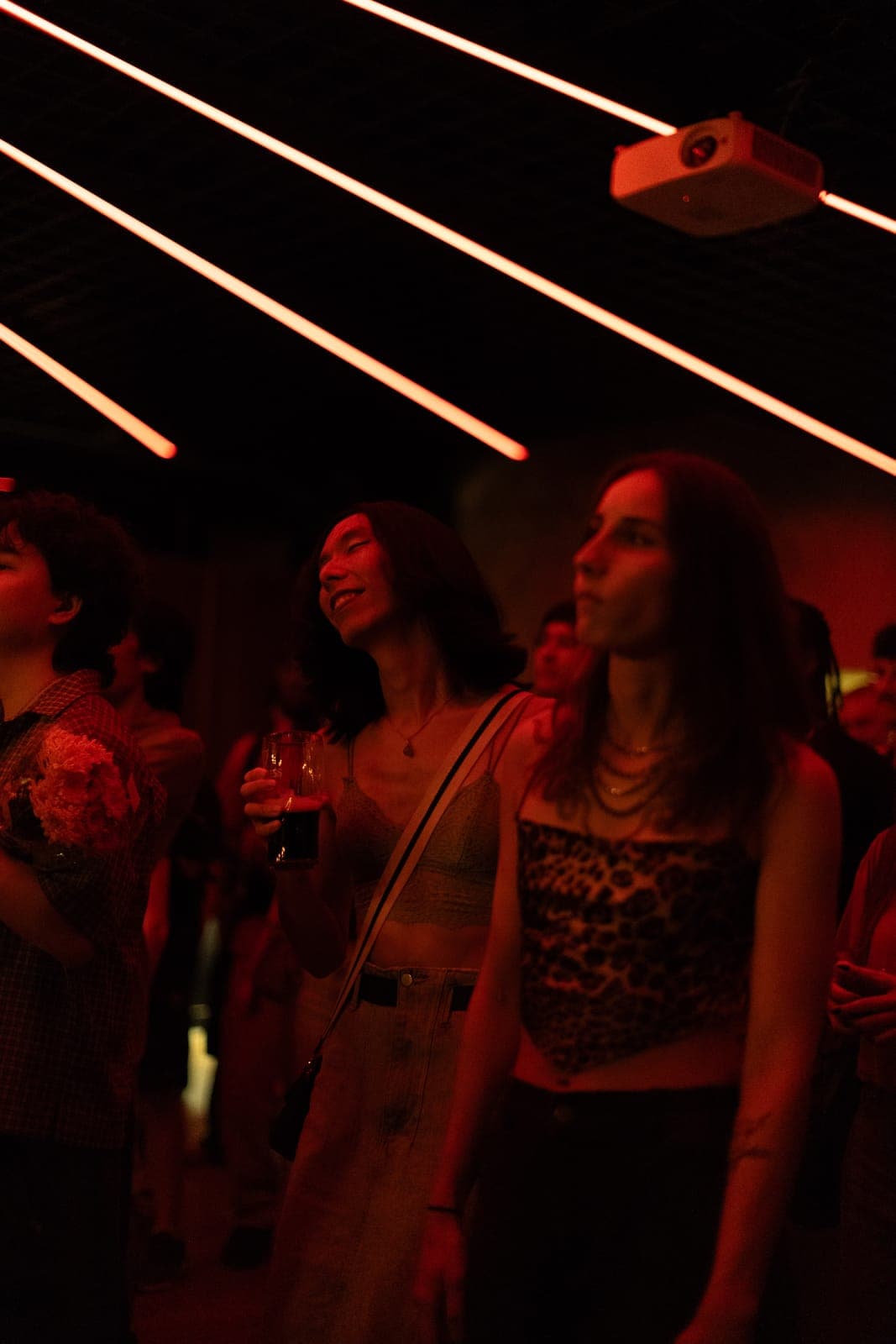
I picked this photo because I felt the subject — an attendee — best captured the vibes of the concert: lost in a trance, eyes closed, a small smile on her face.
The problem was the photo was completely red. Depending on the artist or your style that might be exactly what you want, but for this one I wanted to bring the the rest of the colours back.
I also wanted to re-frame the photo better — there were distractions on the edges that pulled the eye away from her.
Step 2 — See What You're Working With
Not every red-lit photo is salvageable. To figure out which ones are, push the exposure on one frame, copy the setting across the set, and scan. The keepers are the ones where different colour bleeds through under the red.
On this frame, the hints were in the attendees' clothing. For skin, target the tone directly in the HSL panel — trying to balance the whole image rarely works on a frame this red.
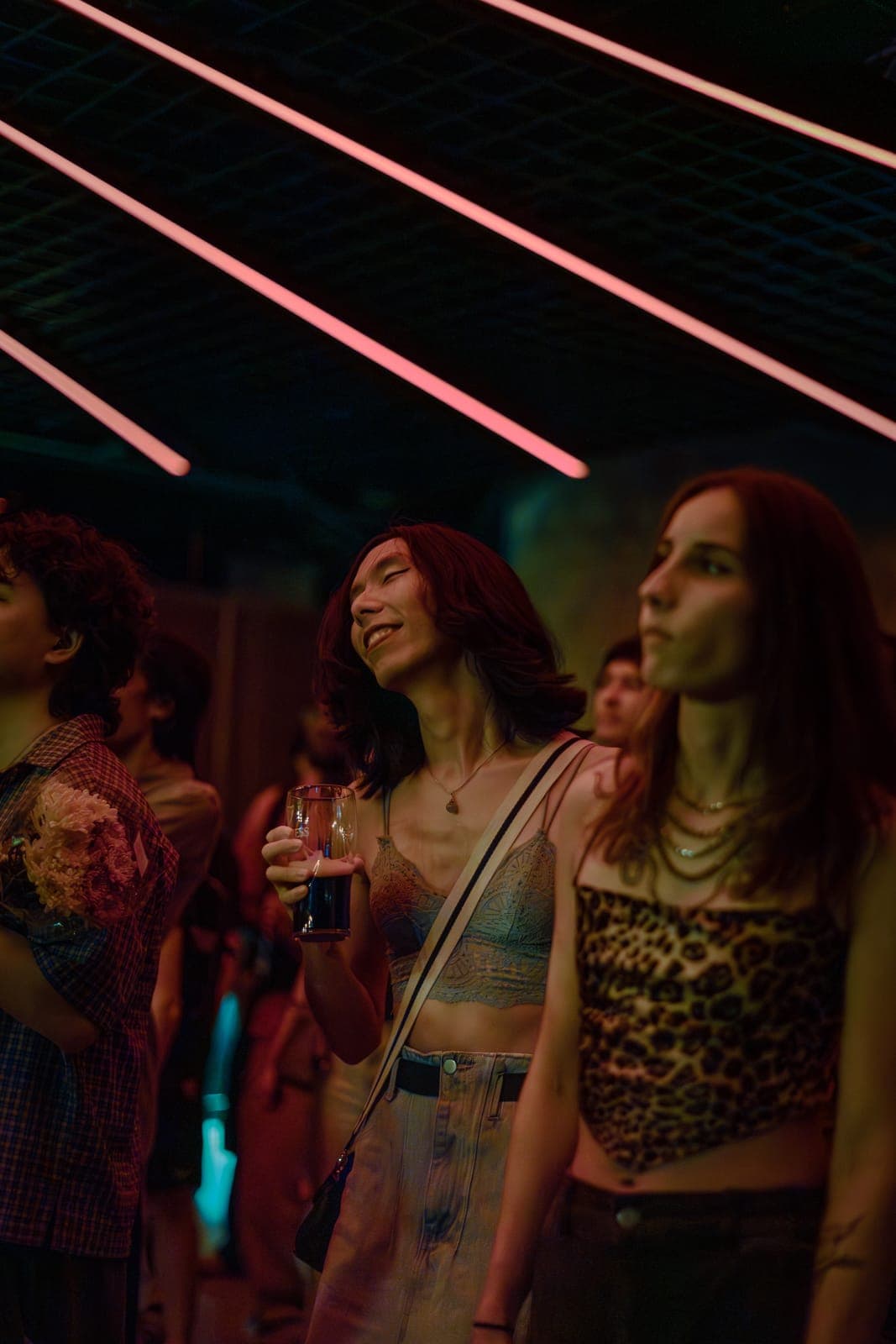
Step 3 — Bring the Colour Back
These are the two settings (in order) that I adjusted for this photo:
- Tone curves — Pull the red curve down across highlights, midtones, and shadows to tame the channel. Then lift the blue and green curves to bring those channels back into the frame.
- Temperature — I lean slightly warm — cool strips the energy out of red-lit frames, but too warm tips the whole image yellow. Where you land depends on your style and the client.
With the colour locked, the basic adjustments handle the rest — exposure for brightness, contrast for punch, highlights and shadows for recovery. Worth its own post.
Step 4 — Create a Focal Point
With the colour pulled back, this is the re-framing I mentioned in Step 1: make sure the eye lands on her, not on the crowd or the stage clutter behind her.
Three small moves get it there:
- Erase distractions — For this image - there was a projector mount in the top-right, I used the "Erase" tool with "Generative Remove" to clean it up. More generally, I'll scan the frame for any objects — microphone stands, water bottles, etc. — anything that can catch the eye but doesn't add to the moment.
- Tighter crop — Cutting the outer thirds of the frame so the people on either side fall out of the composition and the subject sits closer to centre.
- Subtle vignette — A easy way to guide the eye back to the subject is to add a "Radial Mask" for the subject and "Duplicate and Invert" the mask for the background. Then I pull down the exposure and highlights on the background to create a subtle vignette that draws the eye naturally toward the brightest part of the frame — the subject.
That's the edit. The red mood is still there, but the scene is back and the eye has somewhere to rest.